

Whether you are optimizing an e-commerce catalog to pass Google's strict Largest Contentful Paint (LCP) Core Web Vitals, preparing product hero mockups, or squeezing an ID photo into a government portal's strict 50 KB upload limit, image compression is an essential daily workflow. Yet in 2026, finding a tool that shrinks images by 70% to 90% without destroying crisp text or subtle gradients remains surprisingly tricky.
Most mainstream online tools impose irritating paywalls after three files, bombard you with popups, or silently upload sensitive personal photos to remote cloud storage. Other tools claim to compress files but only apply heavy, destructive blur.
To find the true champions of image optimization, we benchmarked the top 10 online image compressors and resizers. We tested each tool across three critical criteria: compression ratio, visual retention (PSNR / SSIM quality), and architecture (in-browser client-side vs. cloud server uploads).
Quick Comparison: Top 10 Image Compressors & Resizers (2026)
Here is how the 10 leading tools stack up at a glance:
| Tool Name | Best For | Output Formats | Processing Model | Batch Limit | Primary Advantage |
|---|---|---|---|---|---|
| [Google Squoosh](#1-google-squoosh) | Web Developers & Maximum Control | AVIF, WebP, MozJPEG, OxiPNG | 100% In-Browser (Wasm) | 1 at a time | Live side-by-side comparison slider |
| [TinyPNG / TinyJPG](#2-tinypng--tinyjpg) | General Use & Smart Lossy Quantization | WebP, PNG, JPEG | Cloud Server | 20 images (5MB each) | Instant drag-and-drop workflow |
| [iLoveIMG](#3-iloveimg) | All-in-One Multi-Tool Workflows | JPG, PNG, SVG, GIF | Cloud Server | Batch supported | Integrated resize, crop, and convert |
| [Bulk Resize Photos](#4-bulk-resize-photos) | Lightning-Fast Batch Resizing | JPG, PNG, WebP | 100% In-Browser (Client-Side) | Unlimited | Resizes hundreds of photos in seconds |
| [Optimizilla](#5-optimizilla-imagecompressor) | Batch Visual Quality Tuning | JPEG, PNG, GIF | Cloud / Browser Hybrid | 20 images | Custom 1-100 quality slider per image |
| [ImageResizer.com](#6-imageresizercom) | Exact Target File Size (KB) & Dimensions | JPG, PNG, WebP, GIF | Cloud Server | Batch supported | Compress to exact KB (e.g., 50KB or 20KB) |
| [Kraken.io](#7-krakenio) | Enterprise & Professional Optimization | JPEG, PNG, GIF, SVG | Cloud Server | 1MB free tier | Lossy, lossless, and expert algorithms |
| [Shrink Me](#8-shrink-me) | Minimalist Open-Source Privacy | JPG, PNG, WebP, SVG | 100% In-Browser (WebAssembly) | Unlimited | Zero server uploads, completely ad-free |
| [Ezgif Image Optimizer](#9-ezgif-optimizer) | Animated GIFs, APNG & WebP Optimization | GIF, WebP, PNG, JPG | Cloud Server | 50MB (GIFs) / 100MB | Unmatched GIF frame & color reduction |
| [FreeConvert](#10-freeconvert-image-compressor) | Massive Files & Granular Tuning | JPG, PNG, WebP, AVIF, TIFF | Cloud Server | Up to 1 GB per file | Advanced chroma subsampling & metadata strip |
1. Google Squoosh — The Gold Standard for Web Developers & AVIF/WebP
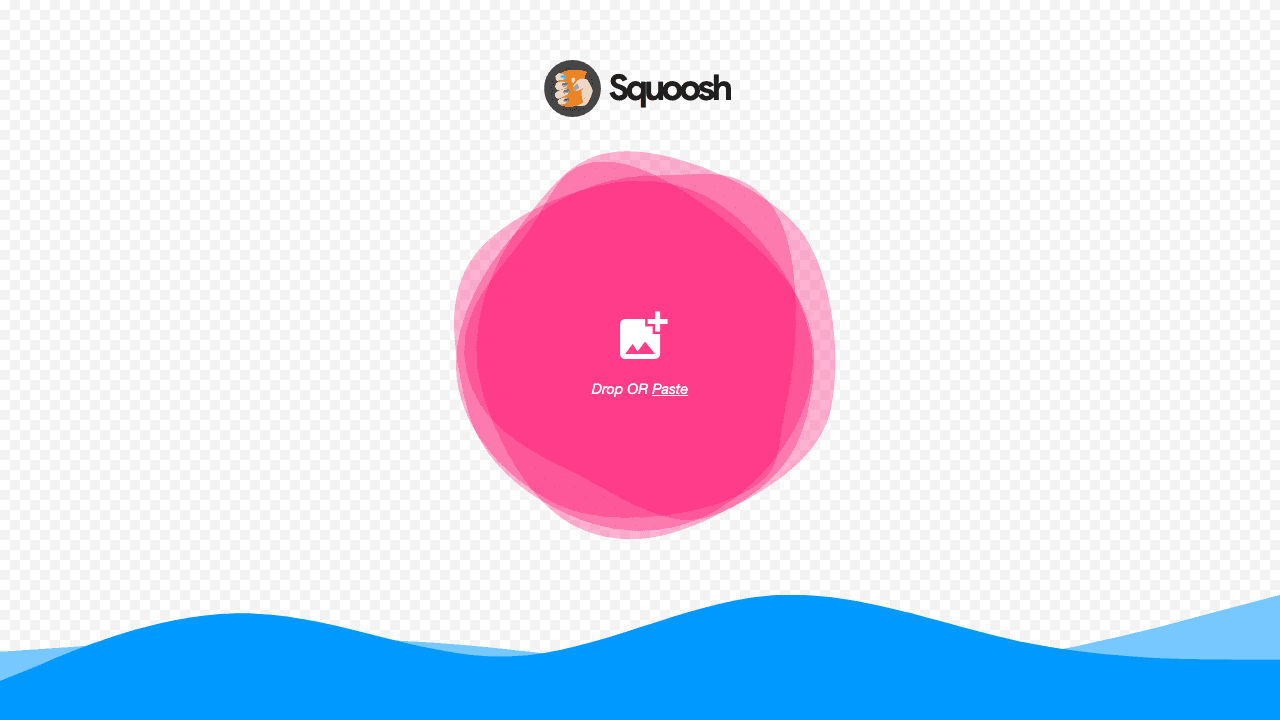
Created by the Google Chrome Labs team, Squoosh is an open-source, client-side web application that lets you test different image codecs directly in your browser. It uses compiled WebAssembly ports of production-grade C/C++ codecs like MozJPEG, WebP, and AVIF.
Why Squoosh Stands Out
Squoosh's signature feature is its interactive before-and-after split slider. You drag a vertical dividing line across your image to inspect pixel-level fidelity while tweaking sliders for quantization, effort, chroma subsampling, and color palettes. Because processing happens 100% locally in your browser's WebAssembly sandbox, your images never leave your machine.
Key Specifications & Performance
Pros & Cons
2. TinyPNG / TinyJPG — The World's Most Popular Smart Lossy Compressor
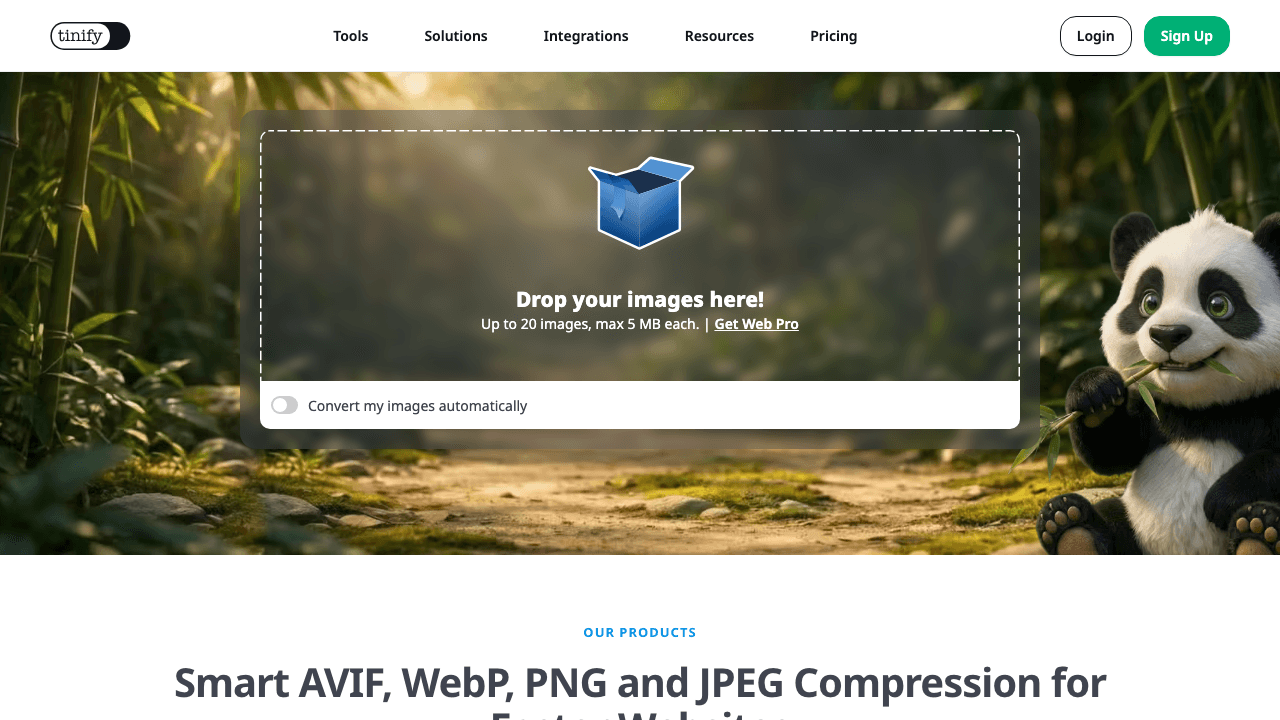
With over a decade of industry trust, TinyPNG (run by Tinify) remains the benchmark for fast, zero-effort lossy image optimization. Its intelligent algorithm analyzes the colors in your image and selectively reduces the color palette, converting 24-bit PNGs to efficient 8-bit indexed images.
Why TinyPNG Stands Out
TinyPNG requires zero technical knowledge. You simply drag up to 20 files into the drop box, and within seconds, your PNGs, JPEGs, and WebP files are shrunken by an average of 65% to 80% while preserving full alpha transparency. The output files look practically indistinguishable to the human eye.
Key Specifications & Performance
Pros & Cons
3. iLoveIMG — The Complete Multi-Tool Image Suite
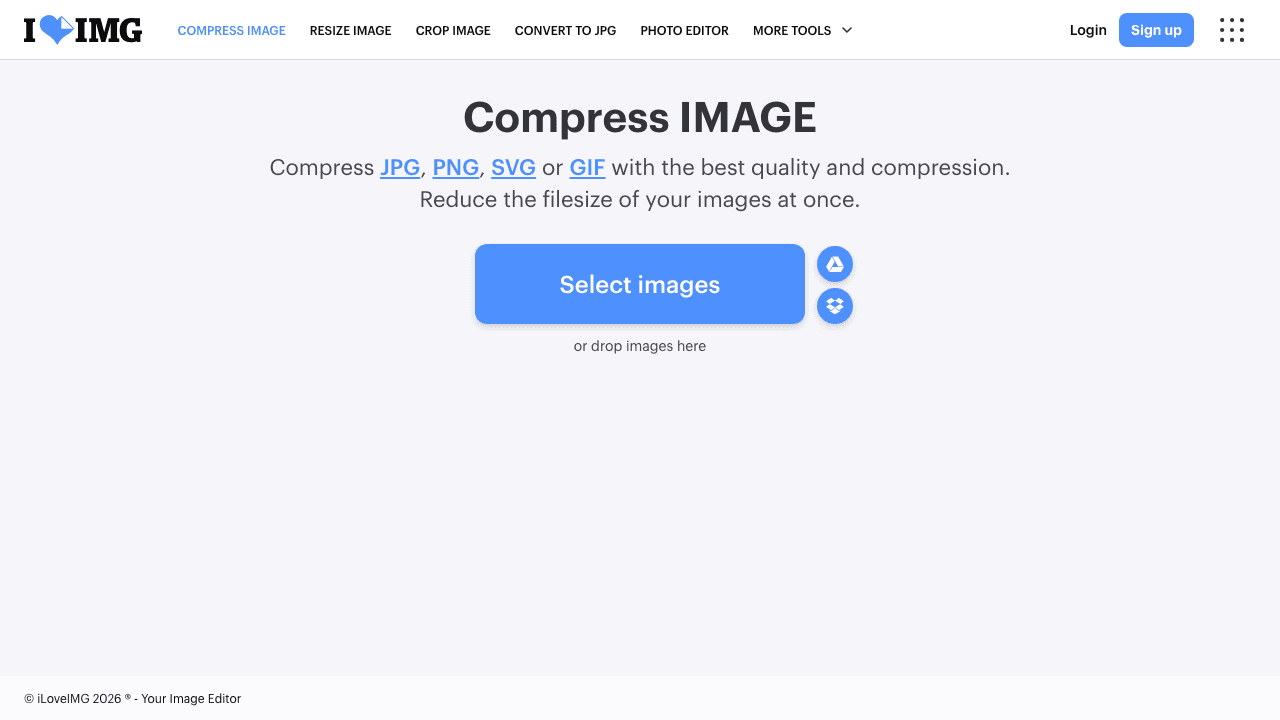
From the creators of iLovePDF, iLoveIMG is an all-in-one browser suite built for users who need to resize, crop, convert, and compress images in a single continuous workflow.
Why iLoveIMG Stands Out
Unlike single-purpose compressors, iLoveIMG lets you chain tools together without re-downloading and re-uploading. For example, you can batch resize 15 vacation photos to 1920×1080 pixels by percentage or exact dimensions, and immediately click "Compress" to shrink their total size before downloading a single organized ZIP file.
Key Specifications & Performance
Pros & Cons
4. Bulk Resize Photos — The Fastest 100% Private In-Browser Batch Resizer
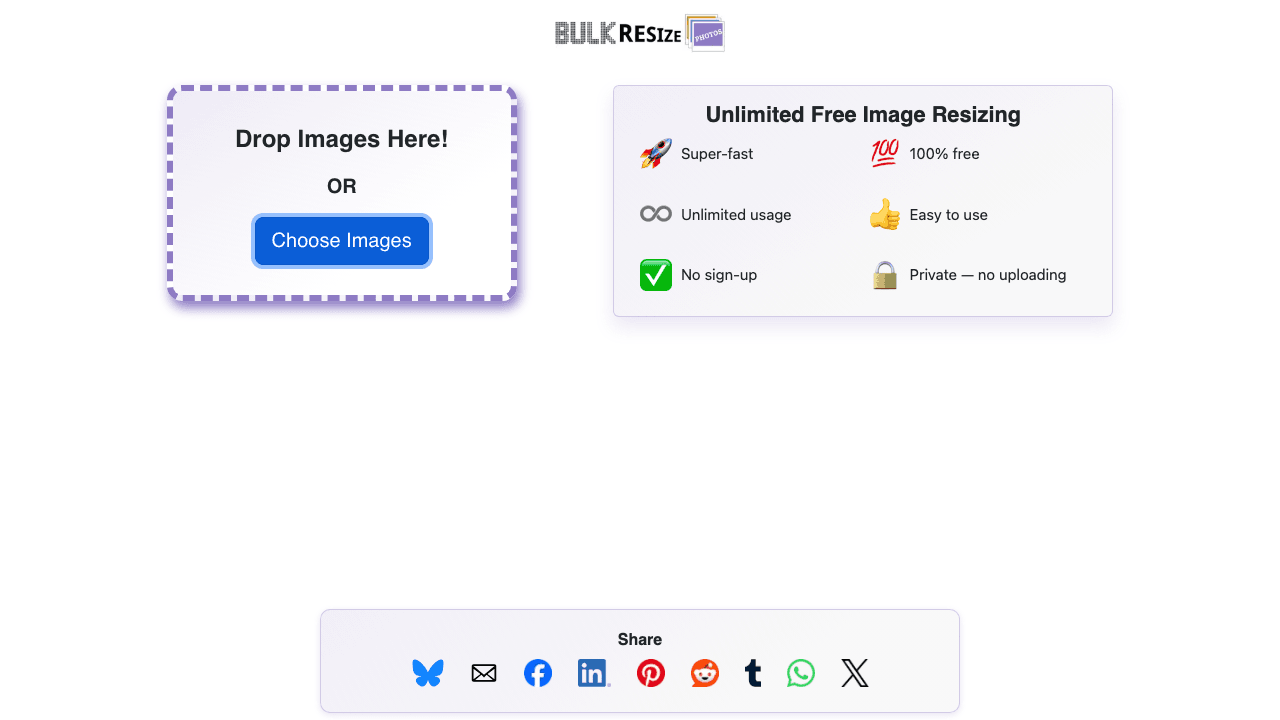
If you need to resize 50, 100, or even 500 photos simultaneously, Bulk Resize Photos is hands down the fastest tool available on the web today.
Why Bulk Resize Photos Stands Out
Most online batch resizers upload your files to a server, wait for the server to render them, and then force you to download a large ZIP file. Bulk Resize Photos operates 100% inside your browser using HTML5 Canvas and JavaScript. Because your images never travel over the network, it can process 100 high-resolution DSLR photos in under 5 seconds.
Key Specifications & Performance
Pros & Cons
5. Optimizilla (ImageCompressor) — Best Visual Quality Slider for Batch Files
Hosted at imagecompressor.com, Optimizilla strikes a near-perfect balance between batch convenience and granular visual control.
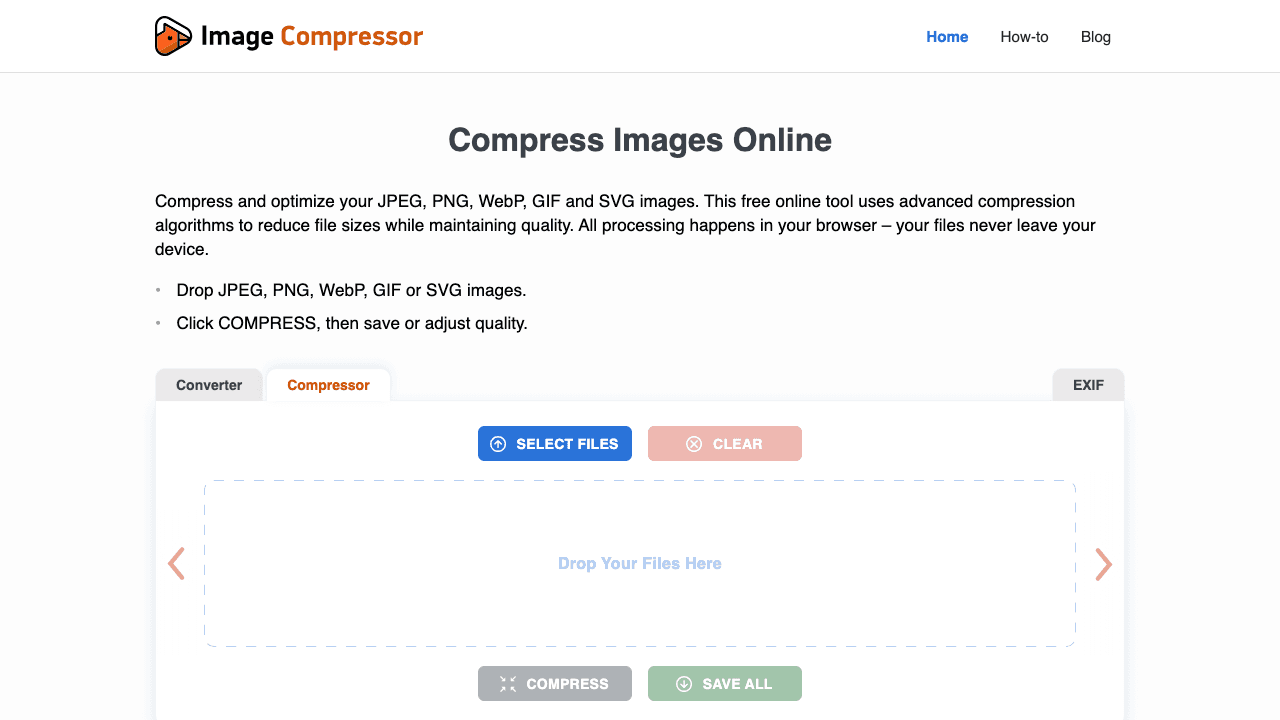
Why Optimizilla Stands Out
When you compress 20 different images at once, a single global compression level rarely fits all of them—some photos look fine at 60% quality, while others with fine line art or typography need 85% to prevent artifacting. Optimizilla solves this by generating an interactive thumbnail carousel. Clicking any uploaded thumbnail opens a live split-screen preview where you can dial in an independent quality level (1 to 100) for that specific image.
Key Specifications & Performance
Pros & Cons
6. ImageResizer.com — Exact Target File Size (KB) & Dimension Precision
For students, job seekers, and government portal applicants, ImageResizer.com is a go-to utility when facing strict application requirements.
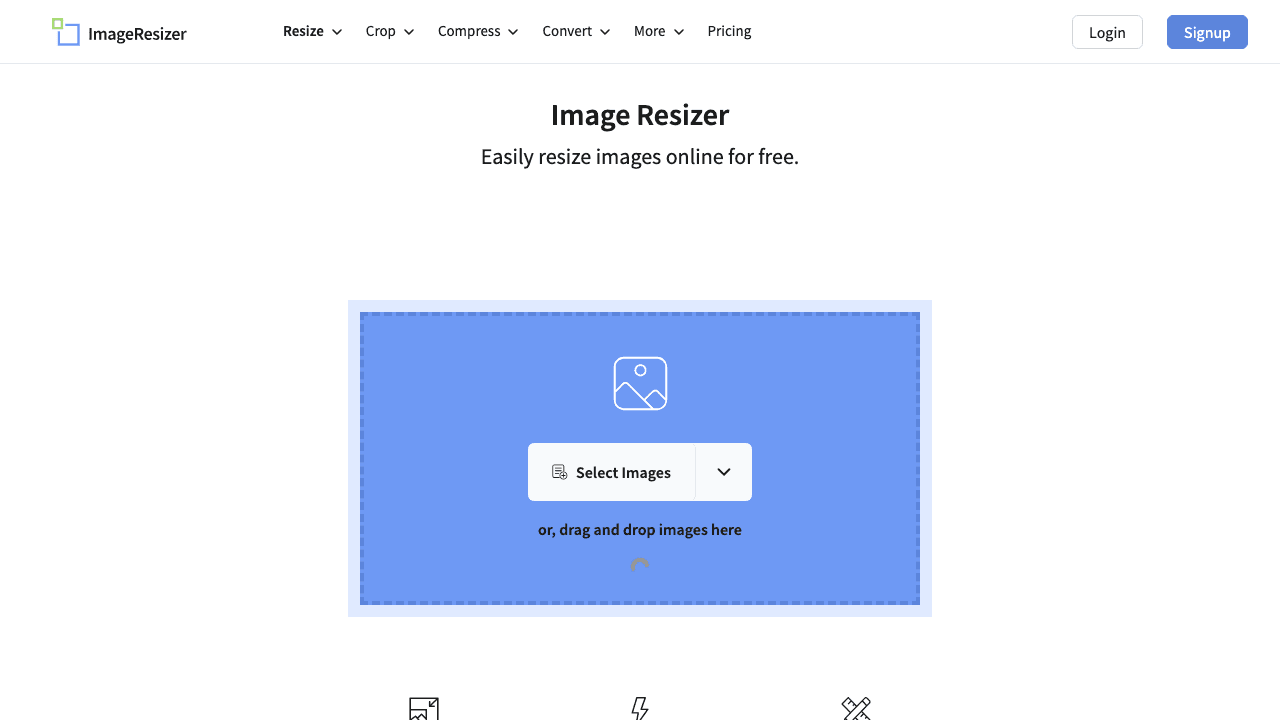
Why ImageResizer.com Stands Out
Most online portals (such as passport, visa, or civil service examination portals) enforce strict file size rules—for example, *"Photo must be under 50 KB and dimensions must be 200×230 pixels"*. ImageResizer.com lets you enter the exact target KB number (e.g., 50 KB) and exact pixel dimensions with locked aspect ratio, automatically calculating the optimal compression curve to land just under your ceiling.
Key Specifications & Performance
Pros & Cons
*(Tip: If you need an instant zero-upload alternative for exam or passport photos, you can also use our Compress Image to 50KB and Compress Image to 20KB tools, which run 100% locally in your browser).*
7. Kraken.io — Enterprise-Grade Lossless & Lossy Optimization
Favored by professional digital agencies, Kraken.io has long been known for its high-fidelity compression algorithms that eliminate bloat without softening critical edges.
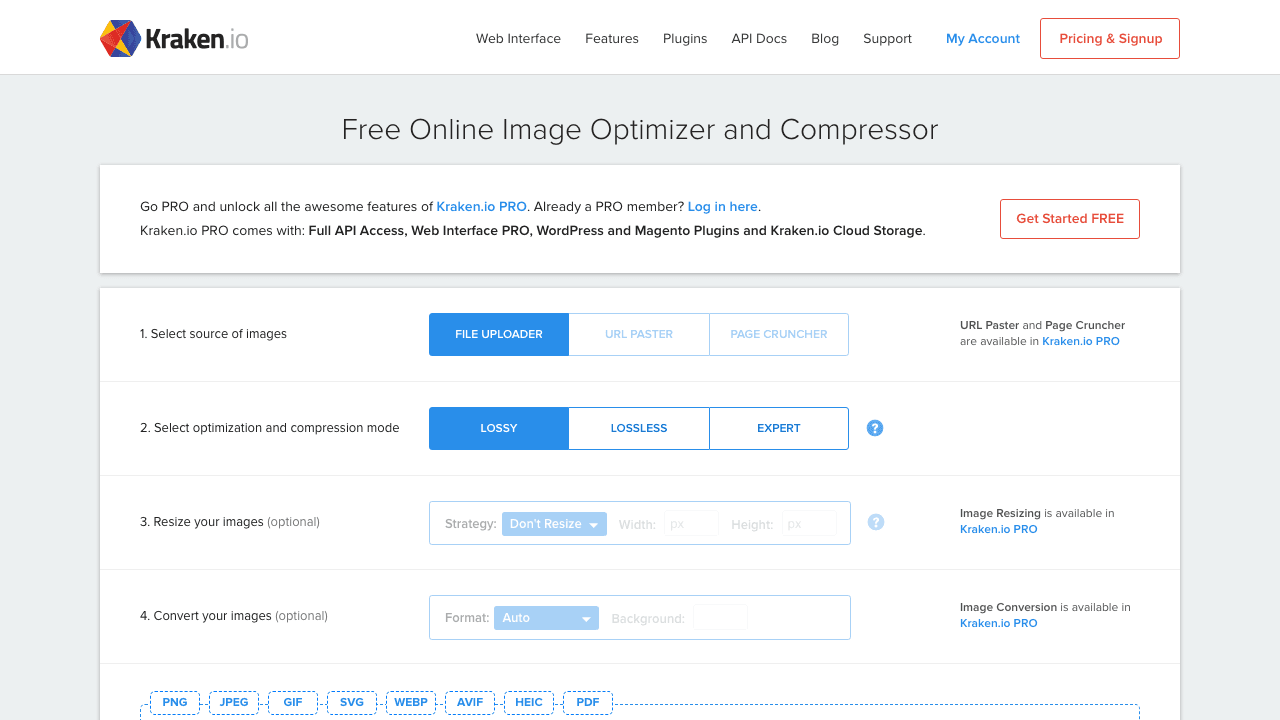
Why Kraken.io Stands Out
Kraken gives you three distinct modes: Lossy, Lossless, and Expert. In Lossless mode, Kraken strips non-essential metadata (EXIF, color profiles, camera tags) and optimizes the deflate/huffman tables without altering a single pixel's color value. This makes it ideal for medical imaging, logos, and print-ready creative assets.
Key Specifications & Performance
Pros & Cons
8. Shrink Me — Minimalist, Privacy-First Open Source Optimizer
If you want zero fluff, zero tracking cookies, and zero server uploads, Shrink Me is an exceptional open-source web application.
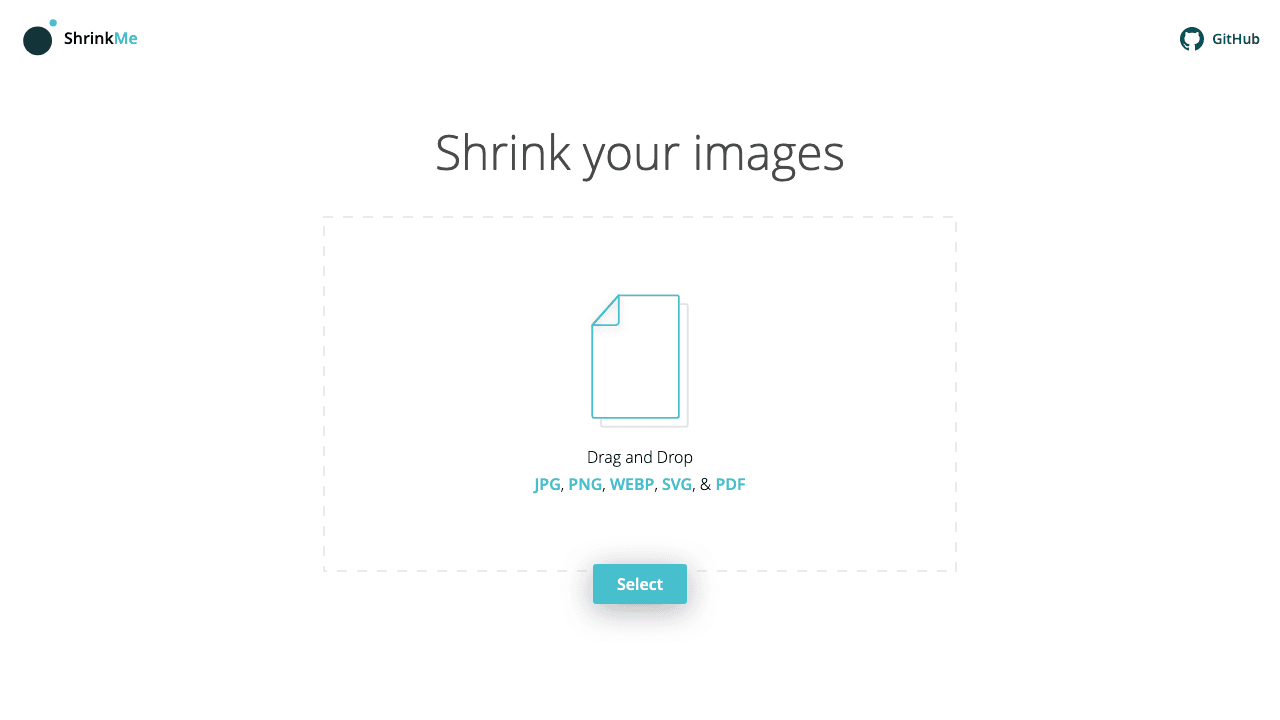
Why Shrink Me Stands Out
Shrink Me features a zen-like interface: a single drag-and-drop target in the center of the screen. Under the hood, it compiles WebAssembly modules to process your images entirely on your local machine. It accepts multiple files at once, processes them in parallel across your CPU threads, and reports the exact byte savings per file.
Key Specifications & Performance
Pros & Cons
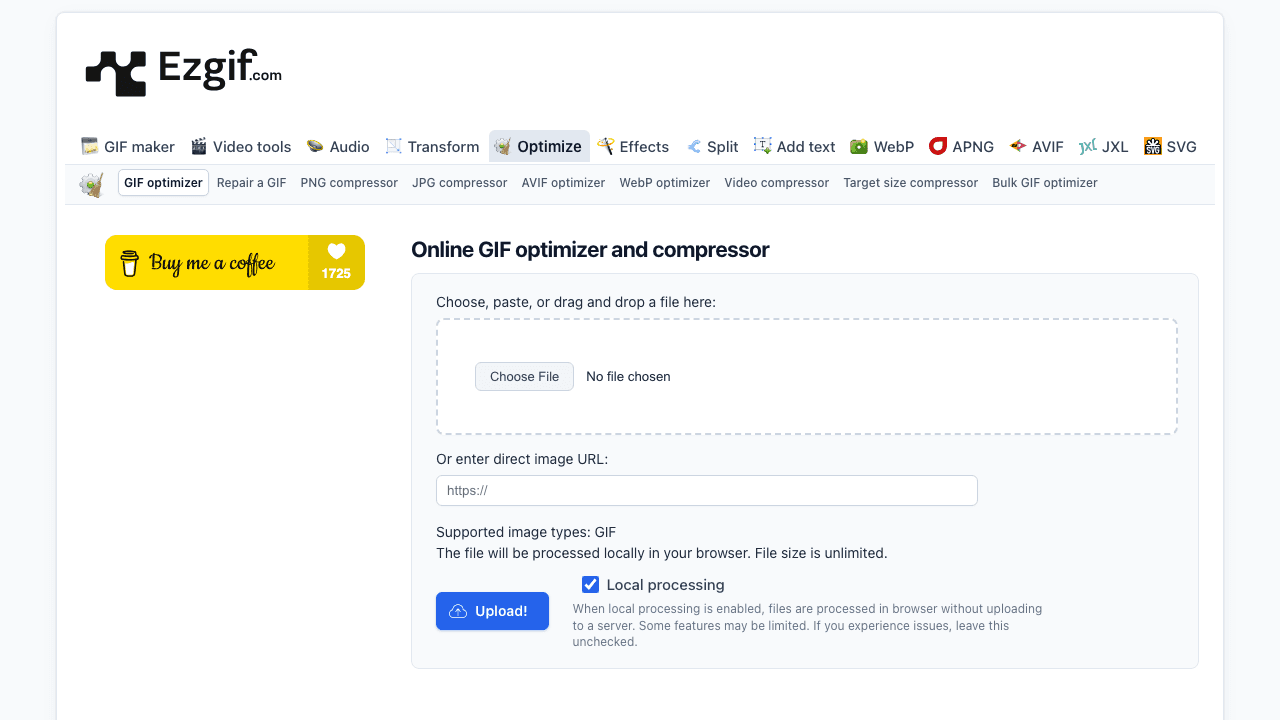
9. Ezgif Image Optimizer — Best for Animated GIFs, APNG & WebP
While modern web tools focus on static photos, Ezgif remains the undisputed champion when dealing with animated files (GIF, APNG, animated WebP).
Why Ezgif Stands Out
Animated GIFs are notorious byte hogs—a 5-second animation can easily weigh 20 MB. Ezgif offers specialized compression techniques that standard compressors can't touch: Lossy LZW compression, color palette reduction (down to 64 or 32 colors), frame dropping (removing every 2nd or 3rd frame), and transparency optimization. It routinely cuts animated GIF sizes by 50% to 80%.
Key Specifications & Performance
Pros & Cons
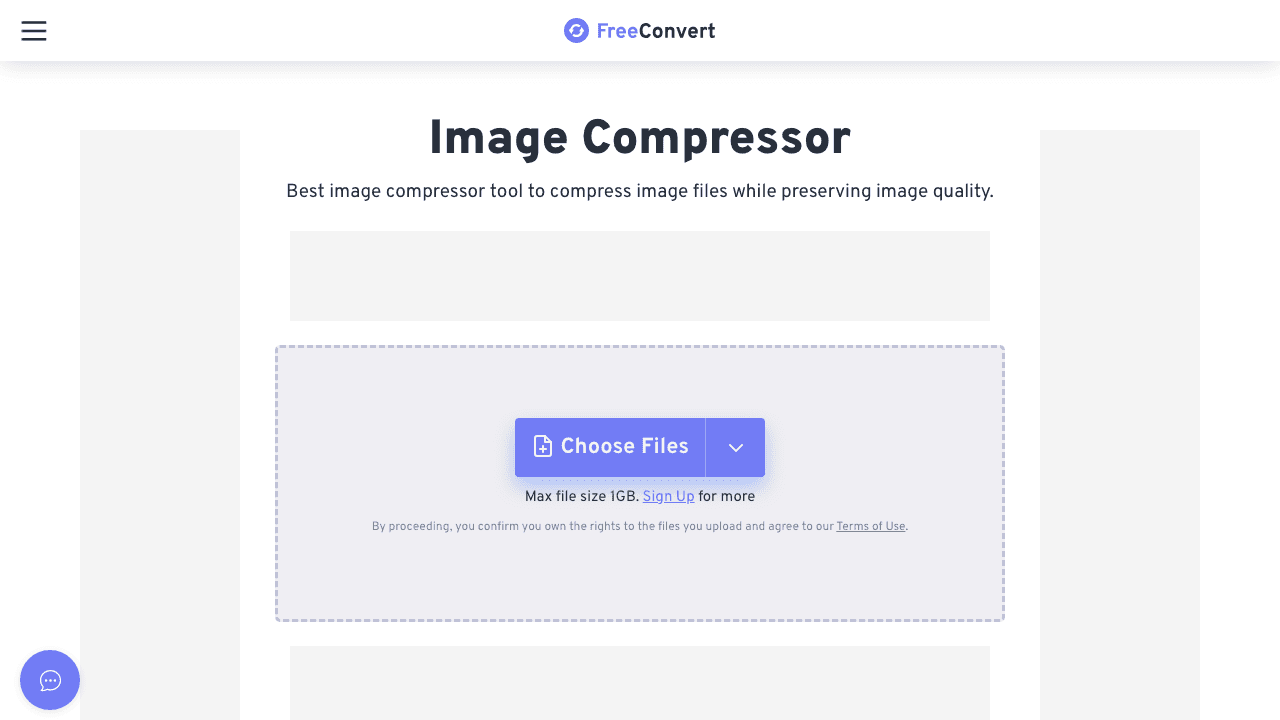
10. FreeConvert Image Compressor — Heavy-Duty Files & Granular Tuning
When you need to compress large RAW photos, high-resolution TIFFs, or batches up to 1 GB, FreeConvert handles file sizes that make other tools crash.
Why FreeConvert Stands Out
FreeConvert's free tier has an unusually high file size ceiling (up to 1 GB per file). Its advanced settings modal gives power users control over deep compression parameters: you can choose between target size percentage, target file size in KB, chroma subsampling (4:2:0 vs. 4:4:4), and strip camera metadata / EXIF tags.
Key Specifications & Performance
Pros & Cons
Deep Dive: How to Choose the Right Tool for Your Task
To get the best compression results without wasting time, match your workflow to the right category of tool:
Scenario A: High-Security / Confidential Documents (Passports, Medical, Financial)
Never upload passport scans, bank statements, or employee badges to random cloud servers. Use tools that execute 100% client-side via WebAssembly:
Scenario B: Web Publishing & SEO Performance (LCP Scores)
Google's search ranking algorithm rewards pages that load fast. If you run a WordPress, Shopify, or Next.js website:
Scenario C: Strict Portal Ceilings (Government, University & Visa Portals)
When a job or visa portal demands a file *under 50 KB* or *under 20 KB*:
Frequently Asked Questions (FAQ)
What is the difference between lossy and lossless compression?
Lossy compression permanently removes subtle visual data that the human eye rarely notices (such as imperceptible color variations). It achieves dramatic reductions of 70% to 90%. Lossless compression rewrites the underlying binary structure without altering a single pixel, yielding smaller savings (10% to 30%) but preserving 100% mathematical accuracy. Use lossy for web photos and social media; use lossless for logos, typography, and archival artwork.
Is WebP better than JPEG for web compression?
Yes. In real-world benchmarks, WebP is on average 25% to 35% smaller than JPEG at equivalent visual quality. Furthermore, WebP natively supports transparency (alpha channel), allowing it to replace both bulky PNGs and standard JPEGs across all modern browsers.
Is AVIF better than WebP?
AVIF (AV1 Image File Format) is even more efficient than WebP, delivering up to 20% greater compression at high compression levels. However, encoding AVIF requires more CPU processing power. Both formats are widely supported across modern browsers, making them the top choices for web performance.
Can I compress images without uploading them to the internet?
Yes! Tools like Google Squoosh, Bulk Resize Photos, Shrink Me, and Fr. Tools run entirely inside your browser's local memory via WebAssembly and HTML5 Canvas. Your files never touch external servers, making them safe for sensitive identity documents.


